
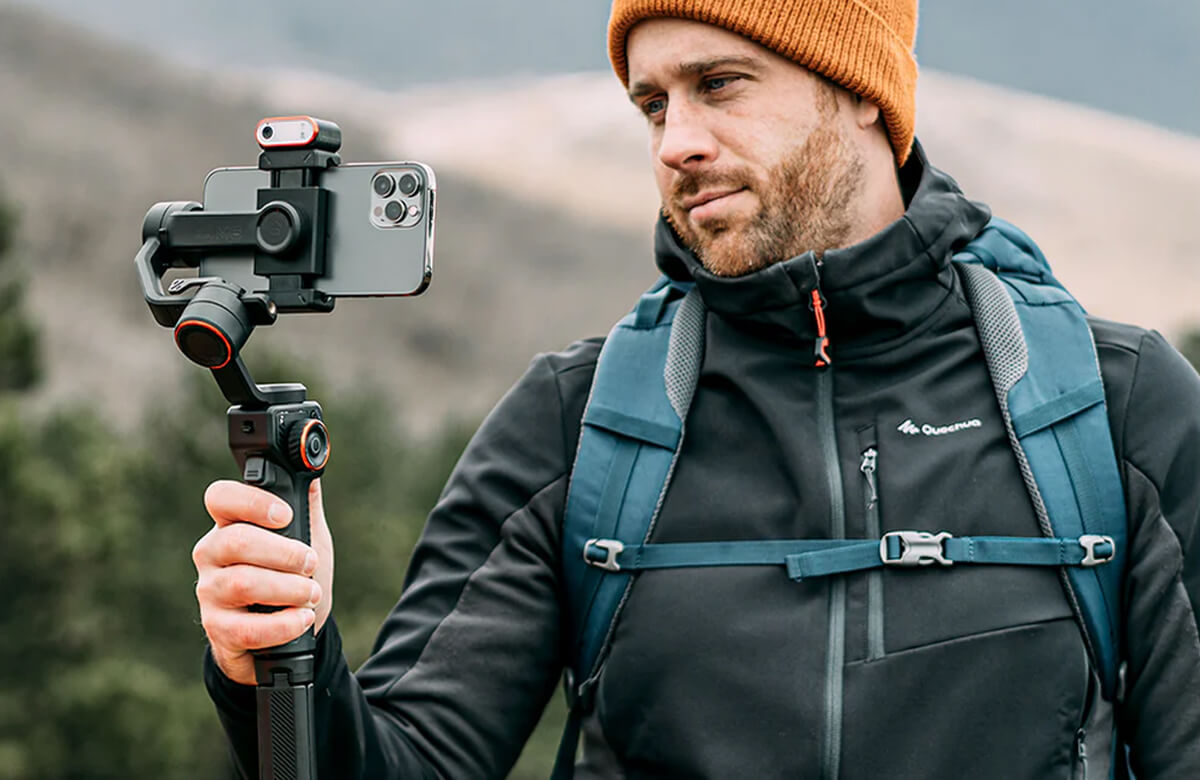
Many Samsung Galaxy users think a gimbal’s only job is to stop shaky footage. But in reality, a gimbal is a storytelling tool — one that transforms your Galaxy phone into a professional-grade camera rig. Whether you’re shooting cinematic clips, travel vlogs, or live streaming your next big event, pairing your Samsung device with a smartphone gimbal like the Hohem iSteady M7 or Hohem iSteady V3 unlocks smooth motion, creative freedom, and stability that looks straight out of a film set.
With the recent Samsung Galaxy S25 Ultra and its incredible 200 MP camera, the potential for mobile filmmaking has never been higher. The only thing missing? A gimbal that can match that power.
Setting Up Your Samsung Galaxy + Gimbal for Creative Work
Before you start rolling, setup and balance matter. For Samsung phones like the Galaxy S25 Ultra, S25 Plus, or Z Flip 6, the size and camera bump mean you need a stable, adjustable mount. Gimbals such as the Hohem iSteady M7 support large flagship phones up to 400 g, ensuring your device stays secure during movement.
Quick setup tips:
- Balance before powering on. Align your Galaxy so it stays level when released — this reduces motor strain.
- Check app compatibility. Pair your phone with the Hohem Joy app via Bluetooth to unlock gesture control, AI tracking, and shooting modes.
- Adjust camera settings. Use 4K 30 or 60 fps for cinematic footage and disable in-phone digital stabilization to prevent overlapping motion correction.
- Add accessories wisely. Attach an external microphone or LED light using the gimbal’s accessory port — but re-balance after adding weight.
Creative Camera Moves with Your Samsung + Gimbal
Once your Samsung is balanced, it’s time to experiment with motion. Here are classic and cinematic moves that make your content feel instantly professional:
Push-in / Pull-out (Dolly Effect)
Walk slowly toward or away from your subject while keeping it centered. This adds dramatic tension — perfect for travel vlogs or product showcases.
Tracking Shot
Follow a moving subject using the gimbal’s AI tracking mode. Whether you’re filming a friend, pet, or yourself walking, your Galaxy S25 Ultra’s autofocus and 200 MP clarity make tracking shots crisp and immersive.
Reveal Shot
Start from behind an object (like a door frame or tree) and move out to unveil your scene. This adds surprise and cinematic flair.
360° Orbit / Inception Spin
Use the joystick or 360° rotation mode to circle around your subject. The iSteady M7’s 3-axis stabilization keeps footage buttery smooth.
Vertical vs Horizontal Transitions
Create content for both TikTok and YouTube by rotating mid-shot — easily done with gimbals supporting vertical quick-switch.
Timelapse / Hyperlapse Mode
Mount your Samsung on a tripod base and capture stunning timelapse transitions of cityscapes, sunsets, or busy streets.
Pro Techniques for Filming & Live Streaming with Samsung
Filmmaking is one part; streaming is another. With Samsung’s powerful cameras and the right gimbal, you can do both.
1. Perfect for Live Streaming - Mount your phone vertically, pair your Bluetooth mic, and stream directly through Instagram Live, TikTok Live, or YouTube Live.
The Hohem iSteady V3 features built-in AI vision sensing for automatic face tracking — ideal for solo streamers who want hands-free framing.
2. Use Galaxy-Specific Features - Nightography Video: Combine Samsung’s low-light AI with gimbal stability for stunning night content.
Ultra-Wide Lens: Great for establishing shots or capturing large spaces.
Super Slow-Mo: The gimbal ensures your slow-motion clips stay smooth and jitter-free.
3. Adjust Motion Speed for Cinematic Feel - Use slower joystick movements and “Follow Mode” for cinematic panning shots. For energetic scenes, switch to “Sport Mode” to keep up with fast motion.
4. Environmental Shooting Tips - Windy conditions? Hold the gimbal with both hands for extra control. Filming on a moving vehicle? Use the gimbal’s “lock mode” to keep your horizon steady.
Post-Production & Streaming Optimization
After capturing your shots, enhance them with thoughtful editing:
- Edit directly on your Samsung phone. Apps like CapCut, VN Editor, or Adobe Rush handle 4K stabilized clips easily.
- Match motion direction. Cut between clips where the gimbal is moving in the same direction to maintain flow.
- Add cinematic color. The Galaxy’s HDR10+ video pairs beautifully with subtle LUTs for that “film look.”
- Speed ramping. Create smooth slow-mo entries or exits for your scenes.
- Export correctly. Use 16:9 for YouTube and 9:16 for Reels or TikTok Live.
Bonus streaming tip: Always test lighting and audio before going live. Ensure your gimbal motors don’t produce micro-vibrations audible through your mic.
Conclusion – Make Your Galaxy + Gimbal Combo Work for You
Pairing your Samsung Galaxy with a gimbal isn’t just about keeping things steady — it’s about unlocking motion, storytelling, and creative freedom. From cinematic moves to live streaming setups, the right gimbal turns your Samsung phone into a full-fledged production tool.
If you’re ready to elevate your Galaxy’s camera potential, explore the lineup at Hohem:
Hohem iSteady M7 – Perfect for Samsung Galaxy S25 Ultra and other large phones, offering 360° rotation and customizable modes.
Hohem iSteady V3 Ultra – Compact with AI face tracking, ideal for live streamers and solo creators.
Your next masterpiece might just be one gimbal move away.
Leave A Comment
All comments are moderated before being published.
Este site está protegido pela Política de privacidade da hCaptcha e da hCaptcha e aplicam-se os Termos de serviço das mesmas.